


Reporting disruption and faults in user operations – user instructions
1. Mandate
In order to send a distruption report, one needs a mandate for reporting disruptions on behalf of the organisation.
An organisation (with a business ID) using the FIN-FSA's electronic services may be represented by a person with the right of representation based on the Trade Register or the Finnish Business Information System, or who has been granted a mandate through the Suomi.fi service.
Further information: e-Authorizations – Suomi.fi
The mandate needed is: “Reporting disruptions in financial sector operations”
2. Reporter's view
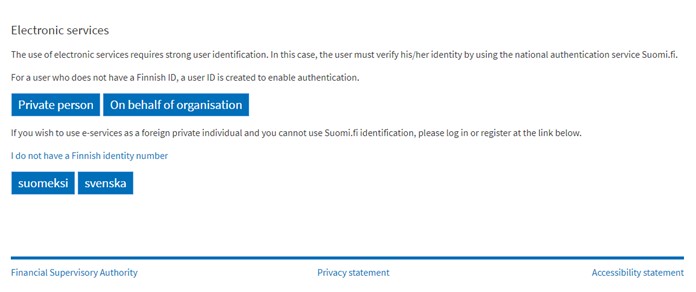
1. In order to send a distruption report, one needs to log on the FIN-FSA's electronic service at, click “On behalf of organisation” and select the relevant organisation from the drop-down menu.
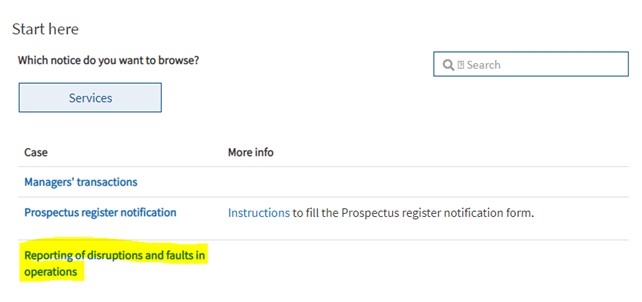
2. After identification, the following view will open. If the reporter has a mandate to submit a distruption report, a link to “Reporting of disruptions and faults in operations” will be displayed and you can complete the form by clicking the link.
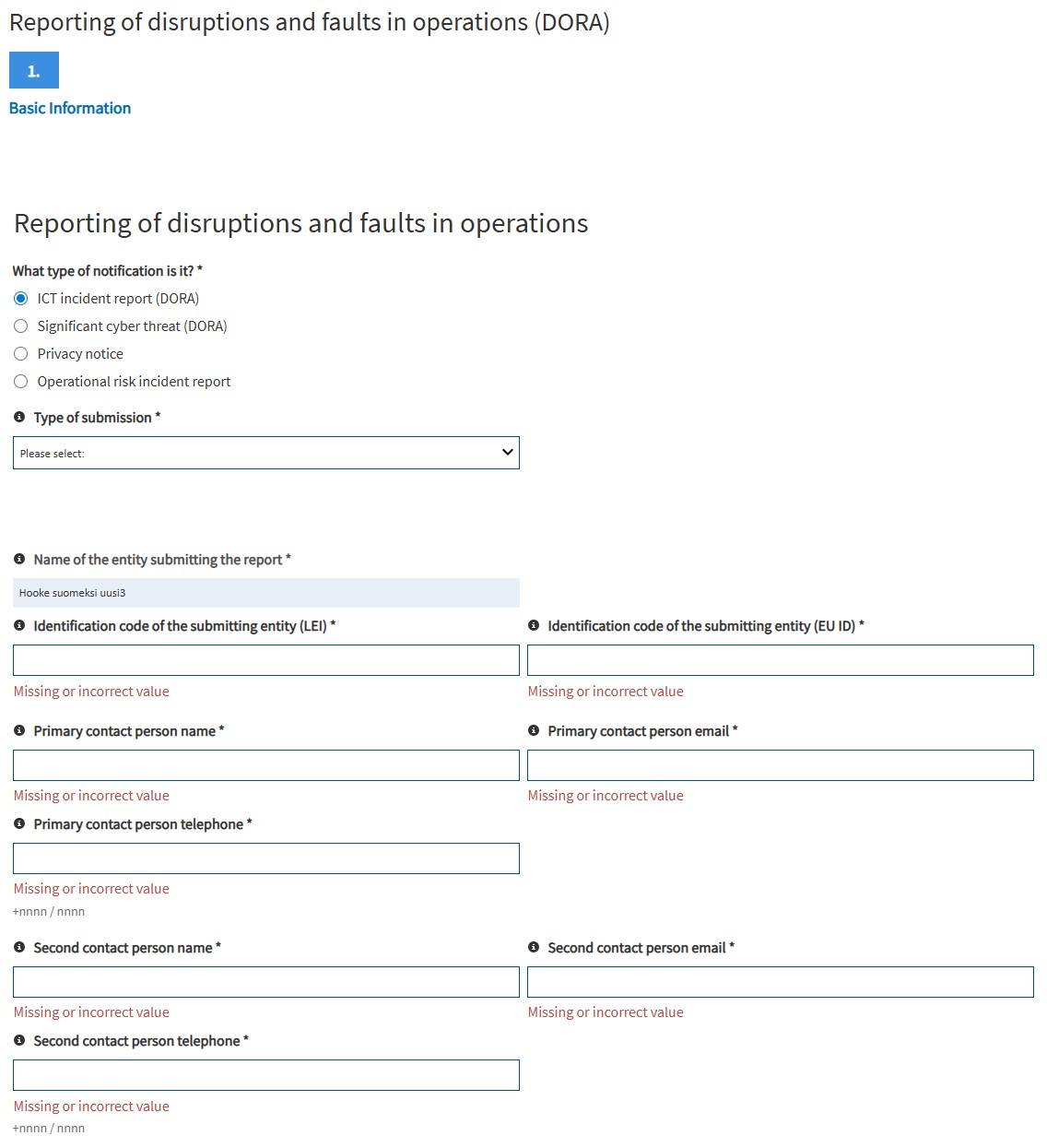
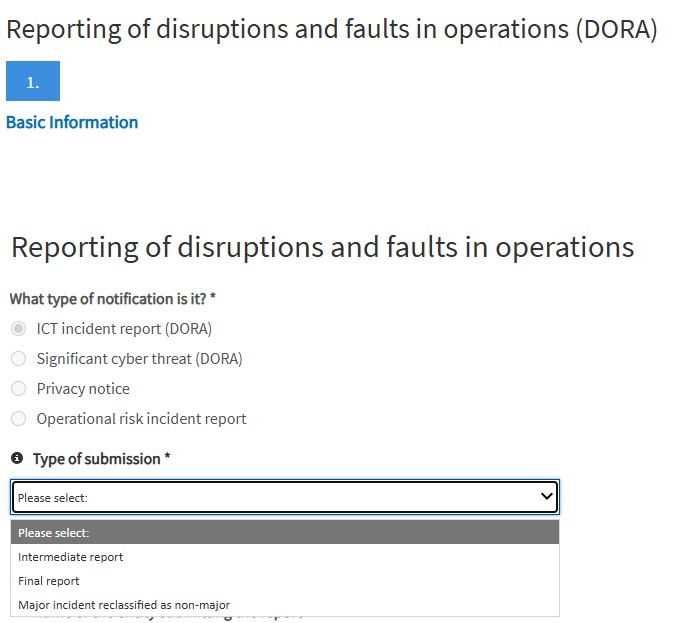
3. When creating a new report, you must first select the notification type. In addition, in the case of an ICT incident report, it must be selected whether the notification is an initial notification or a final report. Submission is completed by filling in at least the mandatory fields, clicking the Preview button, and on the Summary page clicking the Send button.
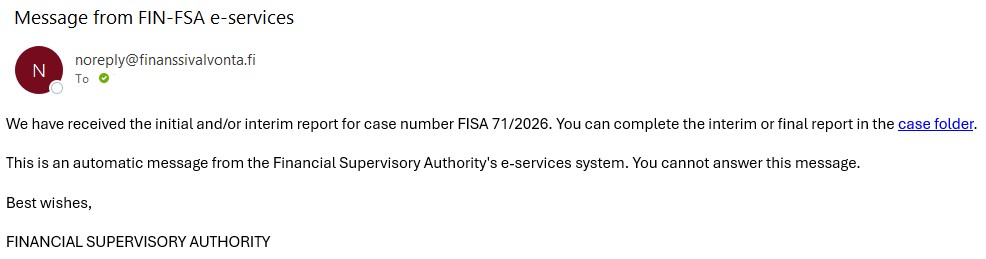
4. After sending a distruption report, the reporter gets a prompt with a link to the case folder. Intermediate and final reports must be sent by accessing the report in the case folder.
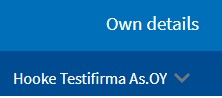
5. If the organisation has several persons who participate in incident reporting, a shared email address that can be accessed by everyone reporting incidents must be used for the prompts referred to in point 4. By doing so, the prompts will be sent to the common inbox. The email address is set on the page opening from the top right corner under “Own details”. Make sure that the name of the relevant organisation is stated under the “Own details” menu before clicking on “Own details".
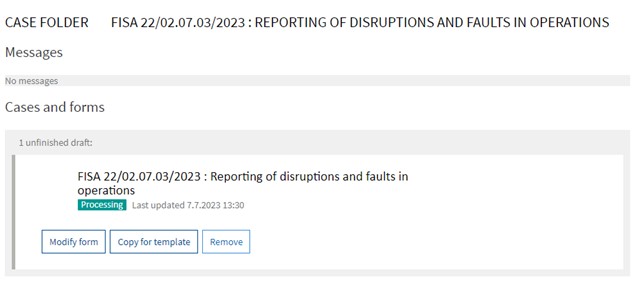
6. You can access the case folder by clicking the link. The report will be shown in the “Sent cases” folder. Clicking the link opens a view with an “Modify form” button that allows you to send an intermediate and final report.

7. Now you can choose an Intermediate report or “major incident reclassified as non-major”. The submission itself is made the same way described in step 3, and after the report has been sent, a similar prompt as in step 4 will be sent by email.
8. If a final report is not sent within 30 days of the submission of the initial report, the following prompt will be sent by email:
|
You sent the initial and/or interim report concerning the error notification 30 days ago, but you have not sent the final report. We kindly request that you send the final report without delay. This is an automatic message from the Financial Supervisory Authority's e-services system. You cannot answer this message. Best wishes, FINANCIAL SUPERVISORY AUTHORITY |